

Table of Contents
Introduction
Having trouble connecting to SQL Server Express? Learn how to enable TCP/IP and fix connection errors in this updated 2025 step-by-step guide.
By default, SQL Server Express does not allow external connections because TCP/IP is disabled. If you want to use SQL Server Express with external connections, you will have to Enable TCP/IP.
You can watch the video I made under here, or follow my step by step guide below.
Step-by-Step guide
I am using a Windows Server 2025, running SQL Server Express, and a simple Windows 11 client with just SSMS installed.
If you open PowerShell from the Client PC, and run the following command.
Test-NetConnection [server ip] -p 1433If “TcpTestSucceeded” is “False” it indicated that the Client can’t reach the Server on TCP port 1433.
If it returns “True”, this guide might not be for you.
How to enable TCP/IP in SQL Server Express
Opening TCP port 1433 in the Firewall on the SQL Server
- Open PowerShell on the SQL Server
- Simply run the following PowerShell command, to open TCP port 1433:
New-NetFirewallRule -DisplayName "SQL Server TCP 1433" -Direction Inbound -Action Allow -Protocol TCP -LocalPort 1433 -Profile AnyEnabling TCP/IP in the SQL Server Configuration Manager
- Open SQL Server Configuration Manager
- Open SQL Server Network Configuration -> Protocols for MSSQLSERVER
- Open TCP/IP and enable TCP/IP

- Change “Enabled” to “Yes”
- Go to “IP Addresses”

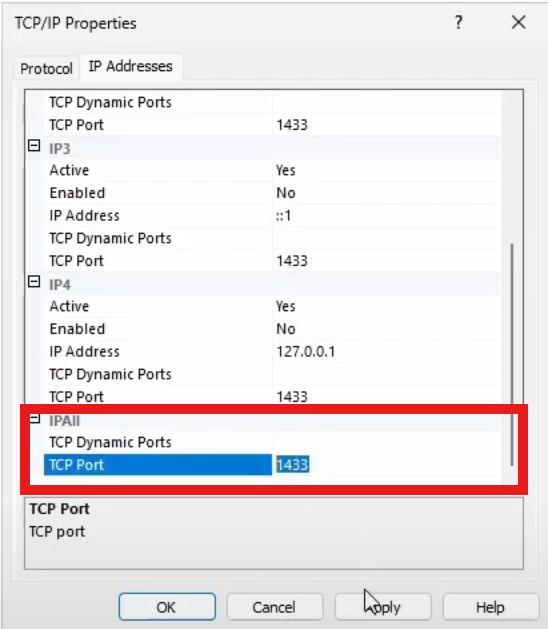
- Check if TCP port 1433 is configured in IPAII (like in the picture below)
- Click “Apply” and “OK”
- Close SQL Server Configuration Manager
Restarting the SQL Server Service
- Press Win + R and type “services.msc” – Hit “Enter”
- Find the service called “SQL Server (instance name)”
- Right-Click and press “Restart”
Checking if the SQL Server listens on TCP port 1433
Running “netstat” to show if the port is open
You can use the “netstat” command to show whether the SQL Server listens on TCP port 1433 or not.
netstat -an | find "1433"The netstat command is short for Network Statistics, it’s a tool that can be used to connections, protocols, listening ports and more.
-a – Shows all connections and listening ports
-n – Shows all addresses in a numeric format (no DNS lookup)
When you use | find "1433", the command will only show the lines that include port 1433.
If there’s an output from the command, it means the SQL Server is listening on port 1433.
Running Test-NetConnection from the Client again
You can also test if the port is open from the client, you can do this by doing the following:
- Run PowerShell
- Run the following command
Test-NetConnection [server ip] -p 1433The command should now return the value “True”, if it does not, you might have to check your network configuration.
Using SSMS to test the connection
Last but not least, you can use SQL Server Management Studio (SSMS) top check whether you can connect to the database. I showed an example in the end of my Youtube video.
Conclusion
You are now able to connect to the SQL Server on TCP port 1433.
If this guide did not fix your issue, the problem could be related to your network configuration.
Can you confirm that you can ping the SQL Server from the Client or Server running an application?
If not, check the network configuration on both the SQL Server, and the client. Also, make sure your routing between the devices is set up properly. This includes firewall rules if you are running a firewall between the devices.
Feel free to leave a comment below if you are experiencing any issues with this guide or if you have any questions. Feedback is also very welcome.

I don’t know if you can, or if you are willing, to assist me with a remote SQL issue. I’ve followed all the steps in your guide without success and keep hitting the same error message which means nothing to me. I’m pretty much skilled in most aspects of computer operation, except for networks/servers etc.
My error reads as follows:
TITLE: Error
The target principal name is incorrect. Cannot generate SSPI context. (Microsoft SQL Server, Error: 0)
I’m running SQLExpress 2022 and SSMS 21 on two devices (laptop and desktop). Both running Windows 11 Pro. I want to be able to access the SQL server instance which is running on the laptop from the desktop.
I’d appreciate any help/guidance you could give
Thanks and regards
Michael Bond
If the machines are not in the same AD domain, Windows Authentication can fail. You can try enabling Mixed Mode in SQL Server (Server Properties → Security), create a SQL login, and connect with SQL Authentication. 😊